Extensiv API Access Setup
A short walkthrough for generating REST API credentials in Extensiv 3PL Warehouse Manager and sharing them with our team.
Hi Ben,
To stand up the Claude Code power user environment we discussed, we need read access to your Extensiv data so the system can pull from inventory, orders, customers, and billing. Extensiv handles this through their REST API credential system, which you can provision yourself directly from your 3PL Warehouse Manager account.
This document walks you through it step by step, with the exact screens you'll see. Ping us if anything looks different on your side and we'll jump in.
- You'll need access to the Support Portal inside 3PL Warehouse Manager. If you don't see it, your CSM can turn it on.
- If your account doesn't yet have REST API access enabled at all, email api@extensiv.com first to request it. They typically enable it within 1 to 2 business days.
Generate REST API credentials
- Log in at app.extensiv.com.
- Open 3PL Warehouse Manager from the dashboard tiles.
- Click Support in the upper-right corner of the screen.

- In the Support Portal, select Manage Credentials (Beta).
- You'll land on a grid showing any existing REST API credentials.

- Click Create New Credential.
- From the dropdown, choose External REST/Developer.
- Click Continue.

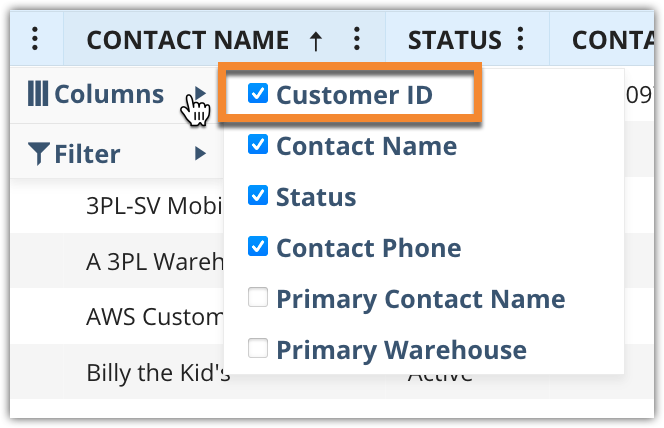
- Customer ID: The Customer ID from your Manage Customers grid in WMS. If the column isn't visible, click the ellipsis on a column header → Columns → check Customer ID.
- Platform: Enter "Daita Dynamics" or "Claude Code Integration".
- Developer Contact Info: Cade Dannels <cade@daitadynamics.com>
- Notes: Anything that helps you identify this credential later. Example: "Daita Dynamics, RFMX Claude Code power user setup".
- Check the Enabled box so the credential is active.
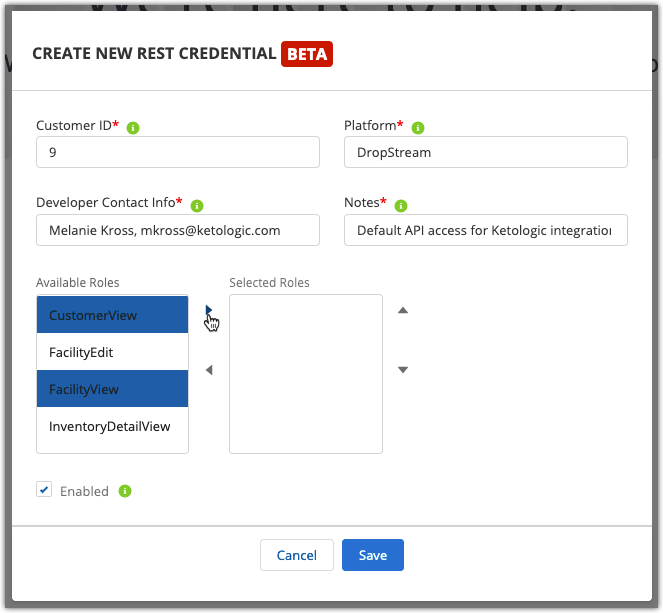
You'll see two columns: Available Roles on the left, Selected Roles on the right. Hold Ctrl (or Cmd on Mac) to multi-select, then click the top arrow to push them across.
For our integration, please assign the following roles:
- Click Save. Extensiv generates the Client ID and Client Secret.
- Find the new row in the Credentials Management grid.
- Copy the Client ID and Client Secret values. The Client Secret is the sensitive one, treat it like a password.
- Open Extensiv Hub, then go to Users.
- Click into the user account tied to the credential you just created.
- On the right side of the user detail page, copy the 3PL Warehouse Manager ID.

user_login field, and that field expects the 3PL Warehouse Manager ID, not the Client ID.
- In 3PL Warehouse Manager, go to Warehouse → Manage Warehouse.
- Note the Warehouse ID for the warehouse you want us reading from. If you have multiple, send all of them and we'll filter on our side.
Send these four values back to us
Please share through 1Password (preferred) or whatever secure channel you usually use. Avoid plain email for the Client Secret.
-
Client IDFrom the Manage Credentials grid, Step 6.
-
Client SecretFrom the Manage Credentials grid, Step 6. Treat like a password.
-
3PL Warehouse Manager IDFrom Extensiv Hub → Users, Step 7.
-
Warehouse ID(s)From Warehouse → Manage Warehouse, Step 8.
-
Customer IDThe same Customer ID you entered in Step 4.
We'll wire Extensiv into the Claude Code power user environment so Ben and the RFMX team can run skills against your warehouse data, build operational dashboards on top of inventory and order data, and feed it into the wider DataOS setup we're standing up for you.